











Table of contents
PowerPoint Summary
As our work environments evolve from co-located teams to almost entirely remote members, collaboration platform products like Microsoft Teams become an integral tool for collaborating effortlessly and effectively. With the Present in Teams feature in PowerPoint, even if you're not in the same room as your audience, sharing your presentation is no less easy or intuitive than if you were.
Note there are three (3) key items required to utilize this functionality
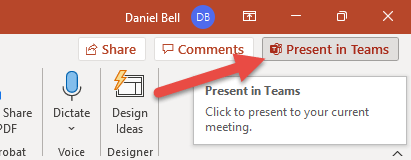
- You must have joined a MS Teams meeting before being able to click the Present in Teams button in PowerPoint. The button will not be present until doing so.
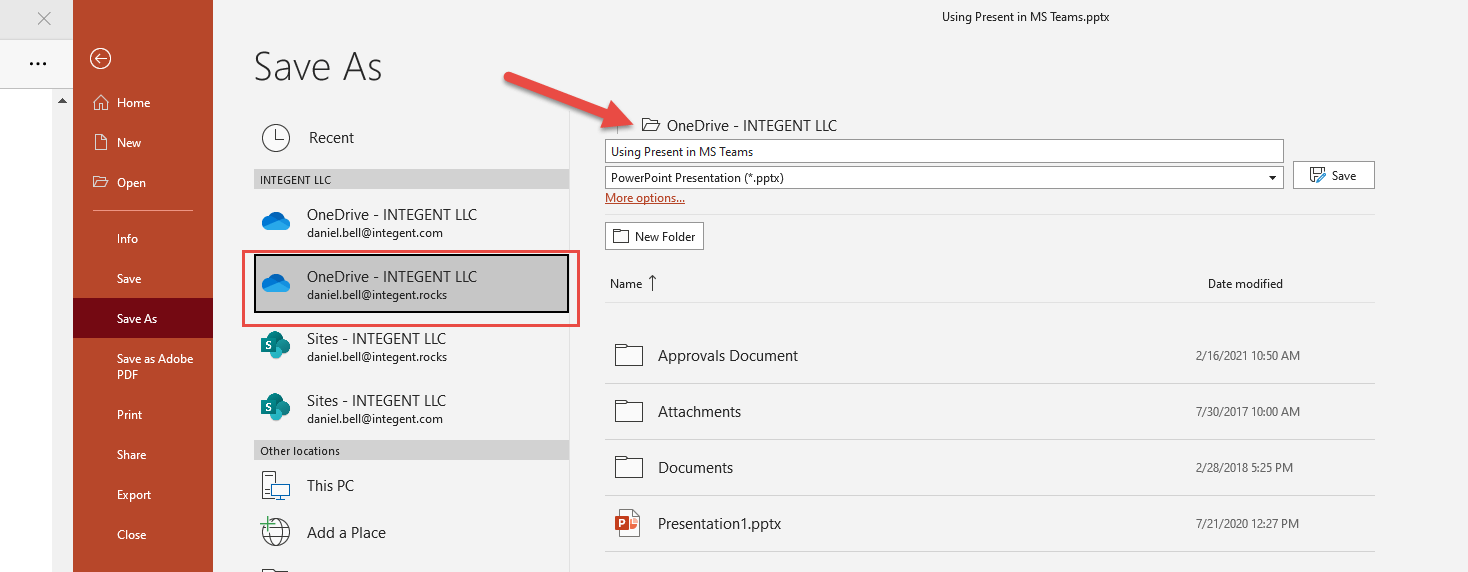
- The PowerPoint file you plan on presenting must be saved in OneDrive for Business, Personal, or SharePoint
- The latest version of the Microsoft Teams desktop app must be installed.
Using the Present in Teams functionality, Step-by-step
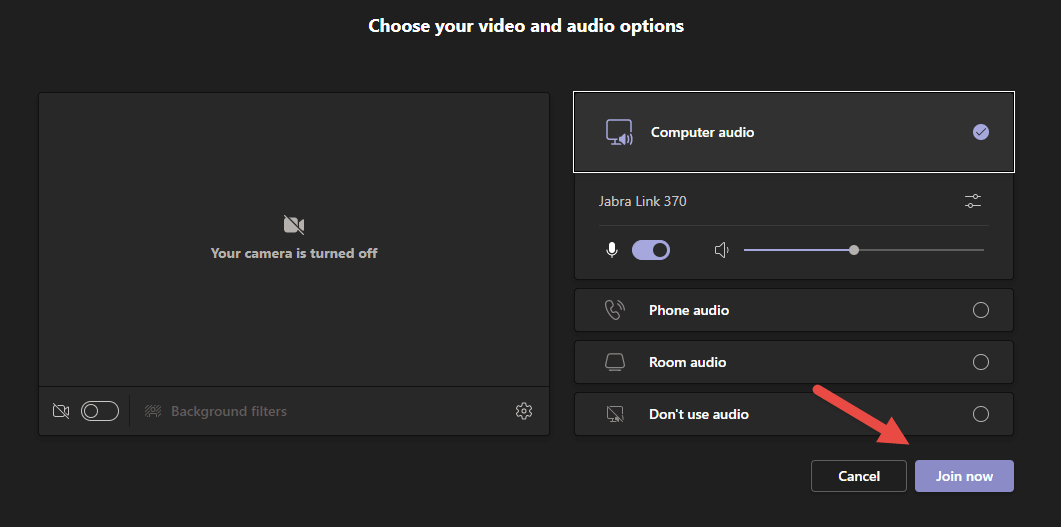
- Join an MS Teams meeting or an ad-hoc Microsoft teams meeting or call.
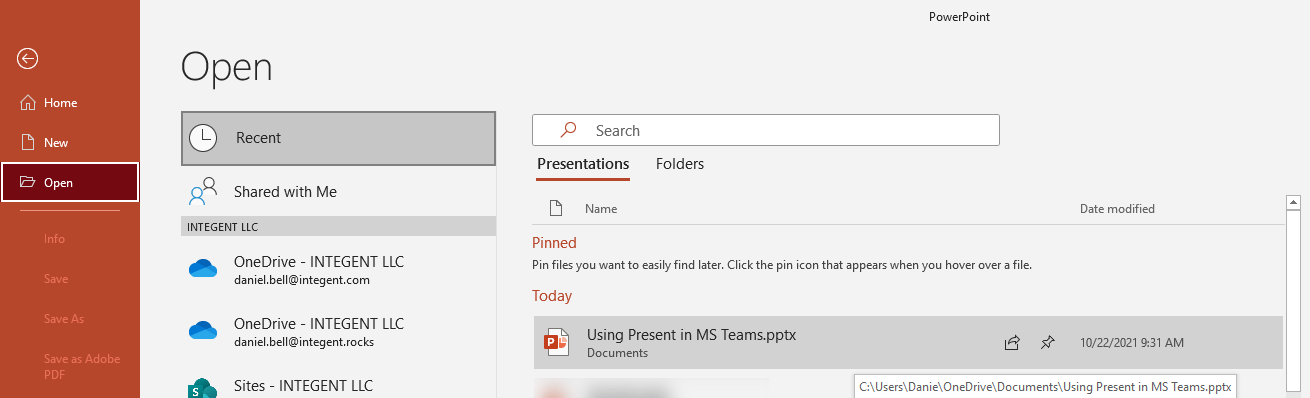
- Open a PowerPoint File.
- Save Presentation to OneDrive
- Click the Present in Teams button in the top right corner of Microsoft PowerPoint.
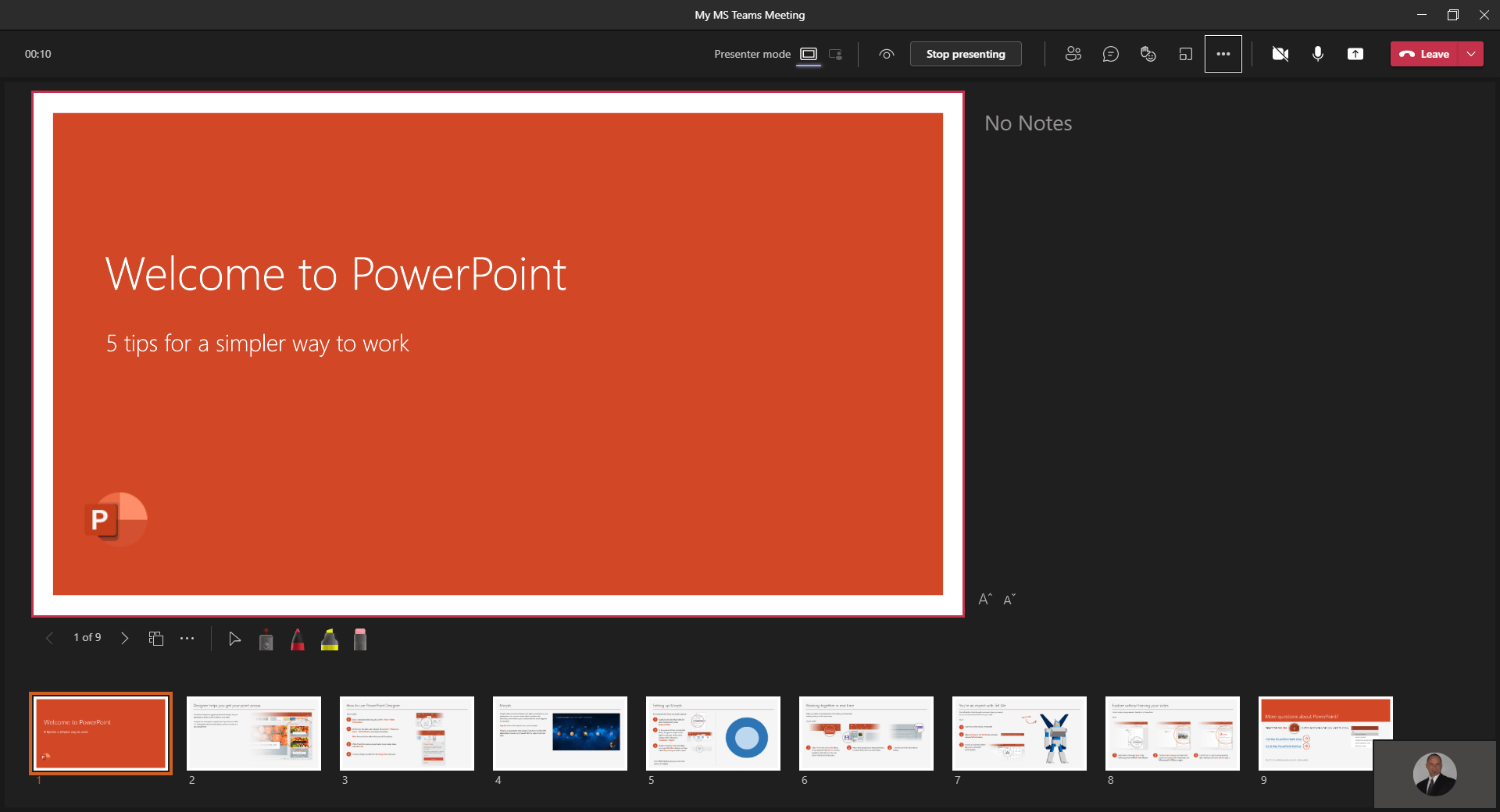
- Presentation is now displayed in Microsoft Teams
What is Microsoft Teams?
Microsoft Teams is a collaboration and communication platform. It is key to keeping your remote workforce engaged, connected, and collaborating in a safe and secure way. MS Teams brings together several Microsoft apps in one location, such as Word, Outlook, and others, so your team has simplified access to the tools they need to work effectively. File sharing, editing documents, taking notes, scheduling meetings, group chat... Teams organizes everything in one place to create a dedicated hub for teamwork.
- Mobile access | accessible via desktop, web browser or mobile device
- Other | shared documents and files, calendar invites, cloud storage, and more
- Office 365 integration | built-in access to SharePoint, OneNote, OneDrive, and more
- Real-time collaboration | share your screen, create or edit and send files directly in the app
- Persistent chat | ongoing stream of team, group chats and one-on-one conversations
- Video conferencing | join audio and video calls with the click of a button
What is Microsoft PowerPoint?
Microsoft PowerPoint, which is available in many Microsoft 365 subscriptions, is a robust presentation graphics package. It gives users everything needed to produce professional-looking presentations for any audience. PowerPoint offers a presenter coach, outlining, word processing, drawing, graphing, and presentation management tools- which are all easy to use and learn. Microsoft PowerPoint mobile allows viewing of PowerPoint files on-the-go.
Check out some of what you can do with MS PowerPoint:
- When you create a presentation using Microsoft PowerPoint, the presentation is made up of a series of slides. The slides that you create using PowerPoint can also be presented as overhead transparencies or 35mm slides.
- In addition to slides, you can print audience handouts, outlines, and speaker's notes.
- You can format all the slides in a presentation using the powerful Slide Master which will be covered in the tutorial.
- You can keep your entire presentation in a single file- all your slides, speaker's notes, and audience handouts.
- You can import what you have created in other Microsoft products, such as Word and Excel into any of your slides.

