








How to Install Microsoft Project from your O365 Subscription
Log in to your O365 portal by navigating to https://portal.office.com
Click on “Install Office” then “Install software”

This will bring you to the “My installs” screen. Find the Project section and click “Install Project”
Select either the 32- or 64-bit version, depending on preference.
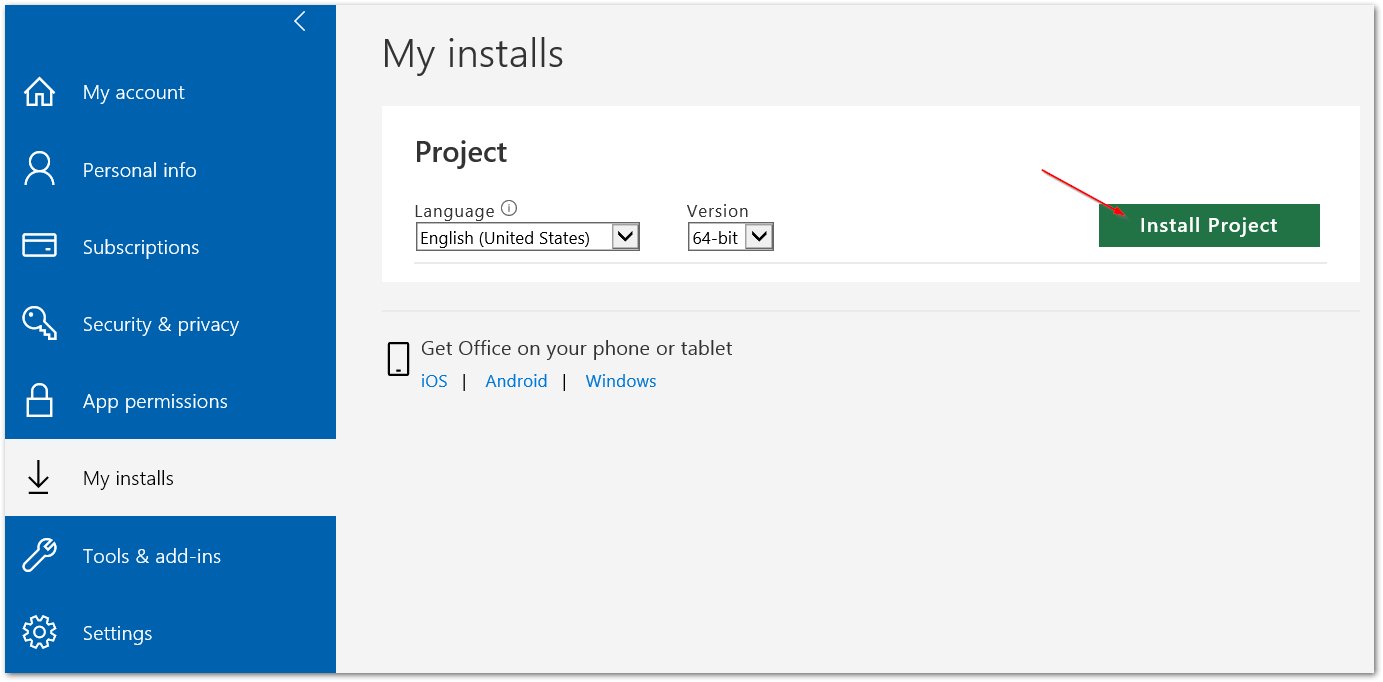
Note: You may have additional installation options available if you have multiple types of O365 licenses assigned to you.
If you do NOT see Project available to install, you may not be assigned the proper license and should reach out to your Admin for confirmation.
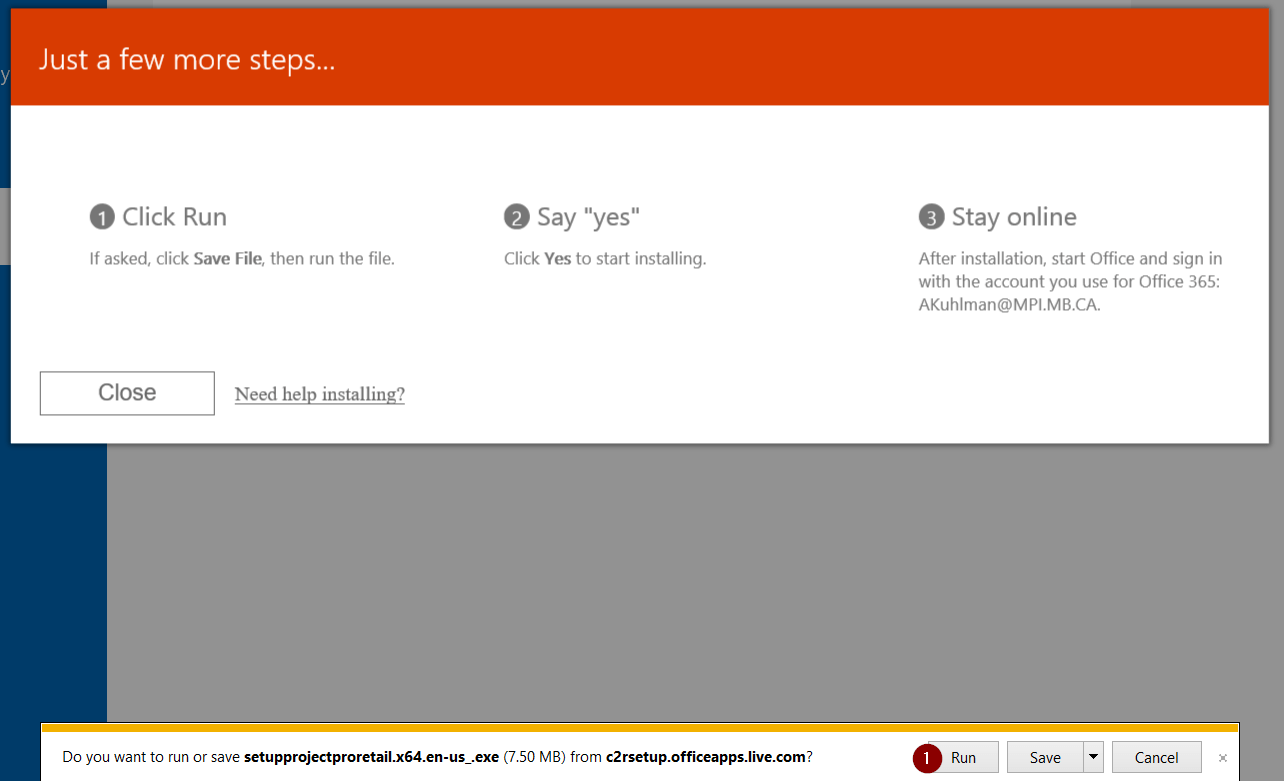
Click Run and follow the prompts to install Project.
Check out these helpful posts!
Video: Learn how to Managing delegates in Project Online
Video: Learn How To build a project schedule in Microsoft Project
Need Microsoft Project Training?
Related Links
- How to Create a New Instance of Project Web App in Microsoft Project Online
- SharePoint Admin: How to Change Your Channel for Project Pro Feature Updates
- Project for the Web Consulting
- Microsoft Project Training
- Microsoft Project Online Consulting
- Microsoft Project Online Migration
- Microsoft Project Online Training
- Dynamics 365 Consulting
- Dynamics 365 Project Operations Consulting
- Microsoft Power Automate Consulting
- Microsoft Power BI Consulting
- Microsoft SharePoint Online Consulting
- Microsoft PPM Consulting
- Microsoft PPM Training
Hitting issues like this more often than you'd like? Our support team handles Microsoft Project and PPM environments day to day — setup, licensing, troubleshooting — so your people stop losing hours to it.
Talk to our support team