











How to Configure Microsoft Project Online Custom Fields and Views
Reporting in Microsoft Project Online is incredibly powerful. Reporting can typically be seen as custom views, and custom reports. The latter using Excel or Power BI.
This specific video walks students through the process of creating custom lookup tables, custom fields, a Project Center view in which the custom fields are added, then testing results. Resulting in a project overview view in Project Center.
Views in Project Center quite often mimic the results of reports and dashboards. Both use the project and resource data in the Project Online database. It's just the Reporting in Microsoft PPM using reporting tools such as Excel and Power BI can take visualization to a new level.
Once you have Microsoft PPM deployed you most likely want to get your environment to have those powerful views you have seen on the Microsoft website! Anyone who has seen the free portfolio reports pack in Power BI typically wants something similar. (there's even one for Microsoft Planner).
Here at Integent we often deploy the report pack for our customers with a bit of customization to the project data. The Project Online reports are a great starter for any organization looking to get a solid resource overview, project overview, and much more in Power BI.
A view of all projects grouped by Program, graphical indicators representing how the project is tracking on cost, schedule, and overall health would be very nice, yes? Learning just a little bit about how to configure MS Project Online will get you very far with the product.
There are many areas within the product that would require configuration, including resource management. What is ultimately configured depends on the needs of the organization.
Views
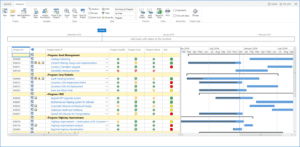
We mentioned a Project Center view earlier in our summary. The Office 365 Microsoft PPM application also allows us to create custom views for the Resource Center, (grouping resources by resource attributes) and Project details (display elements of project tasks, perhaps graphical indicators with a Gantt chart). Custom views may also be created for Microsoft Project Professional, the desktop client.
Strategy
The strategy section of MS Project Online provides the ability to select portfolios of projects that align with a business strategy and strategic objectives. Including constraining the portfolio by resource and cost. The configuration of this section in Microsoft PPM typically includes a Role resource attribute, as well as Currency attribute for a Cost constraint.
The portfolio management process also requires Business Drivers and Impact Statements. These elements and potentially several others round out those needed for project portfolio management analysis in the Microsoft PPM solution.
The Desktop Client, Microsoft Project Professional
Microsoft Project is as critical of a component to Microsoft Project Online as ever. For it is MS Project that contains the full scheduling engine needed for complex project schedule management. MS Project allows us to create a project schedule with assigned tasks that is a high level plan, or very detailed with a specified project team.
These project plans can also be saved as a project plan template, and used as part of the demand management features in Microsoft PPM for project requests and project intake. Any solid project management plan will consist of project templates, and a project management methodology.
As you can see, reporting in Microsoft PPM has many options. Feel free to contact the team at Integent for more information.
Related Links
- Project for the Web Consulting
- Microsoft Project Training
- Microsoft Project Scheduling
- Microsoft Project Online Consulting
- Microsoft PPM Consulting
- Microsoft PPM Training
- Microsoft Project Online Migration
- Microsoft Project Online Training
- Microsoft Project Online Help
- Microsoft Project Online Support
- Dynamics 365 Consulting
- Dynamics 365 Project Operations Consulting
- Microsoft Power Automate Consulting
- Microsoft Power BI Consulting
- Microsoft SharePoint Online Consulting

