








Table of contents
Intra-Project dependencies with Microsoft Project Online: Microsoft Project Online Training
In a previous video I went over the process of using a blank project and insertion of subprojects to create external dependencies between your project plans. That video is a great reference for creating the types of task dependencies you need to note relationships between projects. Recently someone asked me about a Power BI report they were using, and asked why the task dates were different than what they expected. When you open a project that has external task relationships, the related task to the "other" project shows up greyed-out. The dates on that task will reflect the date last saved in your project until such time you allow the date to update based on either the predecessor task or successor task from the external project. What typically happens is the links between projects dialog box will show up when you open your project (depending on your Microsoft Project settings), which shows the current Start Date (or finish date) in your project, as well as any changes that may take place based on the external relationship. The date(s) on the project tasks will change if you "Accept" the changes from the related project. Ultimately it requires an acceptance of the changes for dates to be updated via external links. A step not always very clear with logical dependencies from external projects. Interesting in that as a project manager having used MS Project for a number of years I had to remind myself of this technique, as I do not use it frequently enough! Therefore, if the project team, team members, PMO members, or anyone is stating dates are not correct between project with external dependencies, be sure to check this out. In this video we look at how to use the Links in other projects button in Microsoft Project to view external dependencies and how they may affect your project.Project Dependencies Defined
Simply put, and external dependency is something we have no control of. This is because it is something taking place outside of your project. They do, however, need to be completed in order for your project to continue.Some examples of external sources are shown below.
- External vendor managing activities for their work on a separate project.
- In Microsoft Project Online world, perhaps you want to have security in projects managed by different PMs. In this case you break the project up into smaller projects and assign different project managers. Keeping editing of the individual projects to the individual PMs. The projects are then related via external dependencies.
- Different departments or business units
What is Microsoft Project Online?
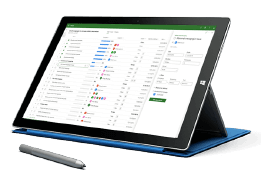
Microsoft Project Online is a cloud-based Project and Portfolio solution offered by Microsoft. The project management tools helps organizations manage projects and programs including very complex projects. Make no mistake, Project Online is not a web-based alternative to Microsoft Project Professional. You actually use Microsoft Project with MS Project Online! When you save your Project schedule, however, you are now saving it to the cloud rather than as a .mpp file to a drive. Once the project has been saved and published to the cloud others will have the ability, based on their role in the Project Online system, to view the project and the project artifacts. This allows these other stakeholders to view the projects overall status, tasks, resources, and other items depending on their role in the system. Microsoft Project Online is built on the SharePoint platform, and all data in stored in the SharePoint content database. Microsoft Project Online is available through two Office Microsoft 265 subscriptions: Project Plan 3 and Project Plan 5.Project Online includes (partial list)
- Baselines: Set project baselines to monitor project execution performance against agreed-to expectations using MS Project and Project Web App.
- Alerts and reminders: Reminders in Outlook and Microsoft Teams help you stay on schedule for important tasks and project events.
- Board view: Track tasks in a visual manner.
- Timesheet approvals: Team members can submit timesheets for approval. Resource managers can review, approve, and decline submitted timesheets. Project Managers approve status updates (Actual progress in project).
- Critical path: Track the tasks that represent the longest path through the project using both MS Project and Project Center in Project Web App.