











Create or edit opportunity records in Microsoft Dynamics CRM Sales Hub
An opportunity is a lead that is just about ready to purchase something. Ready for the win!
With Microsoft Dynamics CRM, opportunities we capture revenue forecast, potential close date, probability of a win, and more. This is customer relationship management!
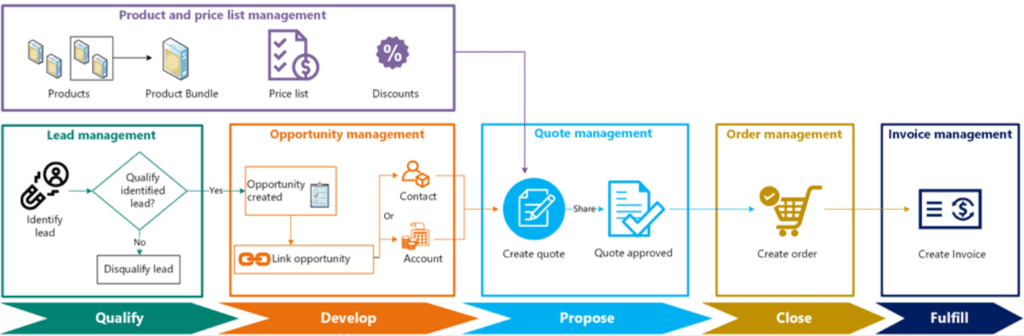
When you create an opportunity in the CRM solution either an existing account is specified or a new one is created. The same thing goes for contacts. A price list, along with products, help to calculate pricing of the products or services potentially being purchased.
With regard to a typical sales process, we could either be in Develop or Proposal stage as a Dynamics 365 customer
License and role requirements
- License: Microsoft Dynamics 365 Sales Enterprise or Dynamics 365 Sales Premium
- Security Roles: Salesperson and above
Ways to create opportunities
- Qualify or convert a lead.
- Import opportunity records.
- Create an opportunity using the Quick Create.
- Create an opportunity from opportunities list.
Microsoft Dynamics CRM Procedure to Create Opportunity
1. Select Opportunities from the Site Map in CRM online.
2. If you've qualified a lead to an opportunity, open the opportunity from the list.
Or
To create a new opportunity, on the command bar, select + New.
3. With the opportunity in the form, ensure the important details for the customer are captured. If this opportunity is a qualified lead, quite a bit of information will have come over with the conversion. Otherwise, relevant information will need to be manually entered.
Capturing customer information makes for a valuable customer service experience for more impactful customer engagements.
- Est. Close Date: The estimated that it is expected opportunity is expected to close and become a win.
- Est. Revenue: This is a calculated field for opportunities that have products added to them. The estimated revenue is calculated based on base price, discounts, manual discounts, taxes, and other items. The estimated revenue is calculated each time the opportunity is saved in Dynamics 365 for Sales, based on any changes to the products, quantities, or other items mentioned.
- Status: The status the opportunity is in.
- Owner: This field represents the owner of the opportunity. The opportunity may be reassigned to other users or a team. The owner is changed by selecting a different user or team in this field. Conversely, the Assign button on the command bar may be used to select a different value.
- Topic: Typically this is a name that represents the opportunity, and it usually describes what the customer is interested in.
- Contact: This represents the contact associated with this opportunity. The contact selected here is also going to be added as a stakeholder for the opportunity.
- Account: This is the account or company associated with this opportunity.
- Currency: This represents the selected currency for the opportunity. It is the currency the opportunity amount is calculated in.
- Purchase Timeframe: This represents the time/timeframe by which the customer is expected to complete the purchase.
- Budget Amount: This field represents the customer's budget for this opportunity.
- Purchase Process: This represents the process by which purchases are made at the customer. individual or committee.
4. Select Save to enable other sections on the form.
5. In the Stakeholders section of the Microsoft Dynamics CRM application, select the More Commands button , and then select + New Connection to add a contact as a stakeholder. A stakeholder is a key contact at the account who will be involved in decision-making.
In the Lookup Records dialog box, enter a name or select the Lookup icon to choose from a list of suggestions. When you have entered the name you want, select Add. To create a new contact, select + New. By default, the contact you add is assigned the Stakeholder role. Select the role corresponding to the contact to select a different role such as Decision Maker or Technical Buyer.
6. If other people in your organization are working on this potential sale, add them as sales team members. In the Sales Team section, select the More Commands button , and then select + New Connection to add a member of the sales team (from your organization).
7. In the Competitors section, select Add Existing Competitor to add a competitor who's competing with your organization for this opportunity. For more information check out the create or edit competitors record article.
8. To save your changes, on the command bar, select Save.
9. Add products to your opportunity.
10. Follow the process bar to move the opportunity to the next stage. In the Develop stage, enter data for the following fields:
- Customer Need: Enter what interests the customer, such as specific product requirements.
- Proposed Solution: Enter the plan for what your organization can offer the account, such as product details.
- Identify Stakeholders: Select mark complete to indicate that you've included information about who will be involved in pursuing the opportunity.
- Identify Competitors: Select mark complete to indicate that you've included information about competitors.
11. In the Propose stage, select mark complete to display a check mark next to each of the following steps that you've completed:
- Identify Sales Team
- Develop Proposal (This optional step indicates that you've included notes about how the account will be approached.)
- Complete Internal Review
- Present Proposal

