





not add domain!
We were unable to refresh one or more connections in this workbook ThisWorkbookDataModel: Excel Services & Microsoft Project Online - Integent
Call Us Today! 1.800.895.3254
sales@integent.com
Consulting & Advisory
Consulting / Advisory helps business and IT leaders make better decisions and turn strategy into execution-ready initiatives. Most engagements start with a Discovery Initiative to confirm outcomes, and build a roadmap.

Learn About Consulting
Data & AI
Data & AI delivers modern data platforms, analytics, and practical AI solutions—from assistants to agents—built on enterprise cloud tools. Integent helps you govern, deploy, and drive adoption so solutions stick and scale across your organization.
Learn About Data & AI
Support
Support keeps your solution stable, secure, and aligned with day-to-day operations. We combine functional and technical expertise with proactive monitoring, preventive maintenance, and 24/7 coverage for critical incidents.

Learn About Support
Microsoft Planner Premium
Leverage proven knowledge and experience to design and deploy Microsoft Planner Premium so your organization can manage projects, work, and resources more effectively across teams.
Learn More About Planner Premium
OnePlan
Integent can help you ensure continuity beyond Project Online by deploying OnePlan in the Microsoft Cloud—connecting portfolio governance, resources, and delivery execution for results.
Learn More About OnePlan
Microsoft Dynamics 365
Ensure business continuity with a custom cloud solution that connects your sales, service, finance, and operations teams to deliver measurable, predictable results.

Learn More About Dynamics 365
Microsoft Power Platform
Consisting of Power BI, Power Apps, Power Automate and Copilot Studio, the Microsoft Power Platform helps streamline and improve business functions.

Learn More About Power Platform
About Integent
Integent was founded in 2009 on the principles of building long-lasting relationships with customers, exceeding expectations, and providing outstanding customer service. 

We’re dedicated to providing a customized solution backed by our knowledgeable team of Microsoft experts.
Discover What Makes Us Different
News
Stay informed on Integent’s latest company updates and other important industry information. Our passion is customer success.
Read The Latest News
Videos
Learning new software doesn’t have to be difficult with our library of dozens of free training videos. Our video training always has something new.
Browse Our Training Video Library
Blog
Our industry experts share best practices and common pitfalls to avoid, in order to get the most out of your technology solutions.
Discover More

April 15, 2016

We were unable to refresh one or more connections in this workbook ThisWorkbookDataModel: Excel Services & Microsoft Project Online

image

This was an issue that occurred when working specifically with Excel 2016 under the following conditions:


  • Create a connection to a datasource using Excel's typicall method of connecting to a datasource.
  • Create a Pivot Table or Pivot Chart
  • Drag a date field to one of the Area's section (i.e. Rows, Columns, Values, Fiter, Axis) to add it to the Pivot.
  • When the date field is dropped into the area section, Excel will break it into groups (Year, Quarter, Month) automatically.
  • Add additional fields as needed
  • Save the Workbook by uploading it to Office 365
  • In Office365, locate the workbook you uploaded and open it using the browser.  This will cause the new workbook to open in Excel Services.
  • In the top menu, click Data and refresh the data connection.
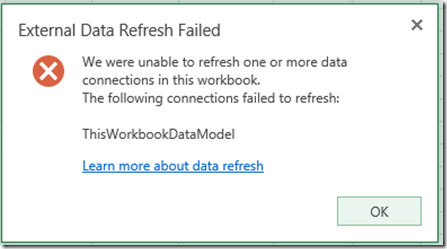
  • The workbook will fail to refresh with an error "We were unable to refresh one or more data connections in this workbook.  The following connections failed to refresh:  This workbookDataModel.

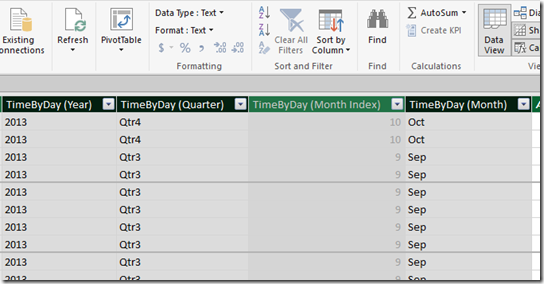
What was happening is when Excel 2016 was breaking the date field into Year, Quarter, Month groups automatically, it was naming them something like TimeByDay (Month), etc.  See below
image

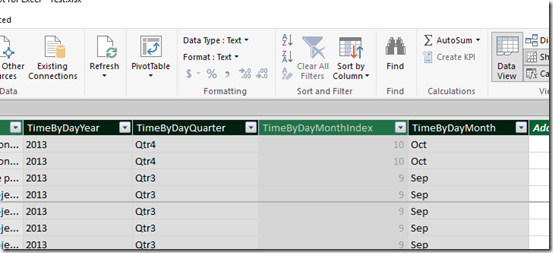
What we had to do was rename the fields to TimeByDayMonth, etc.  (see below)  Once we did and re-uploaded the reports they would then render in Excel Services with no error.
image

Thanks!  if you have any questions or comments feel free to leave them below.

-Dan

© Copyright 2026 | Integent.com | All Rights Reserved
linkedin facebook pinterest youtube rss twitter instagram facebook-blank rss-blank linkedin-blank pinterest youtube twitter instagram