











If Active Directory Synchronization is as mysterious to you as it was to me, you’ve landed in the right place. Although I’ve been working with Project Server since its inception, I’ve never worked in Active Directory and had a hard time understanding how it interfaced with Project Server. Now that I do understand it, I have to admit I feel a little silly for being so confused.
Since I struggled with it, I thought maybe some of you have, too. So here is my best explanation of how Active Directory Synch works and the steps required to set it up:
First, understand that groups must be created in Active Directory. I can’t really help you with that step; you’ll need to get your network administrator involved. There are multiple groups that need to be created based on the various security groups your organization uses. The groups can be named whatever you’d like but I’ve listed below what is commonly used and what seems to make the most sense to me.
· grpResourcePool – all users need to be added to this group in AD if you want them to be able to be assigned as resources on projects
· grpAdministrators – add all users who belong in the Administrators security group
· grpProjectManagers – add all users who belong in the Project Managers security group
· grpTeamMember - add all users who belong in the Team Members security group
You get the idea. Create as many AD group as you need to correspond with Project Server security groups.
Second, select grpResourcePool in AD Resource Pool Synchronization settings to add/update resources to the Enterprise Resource Pool by following the steps below:
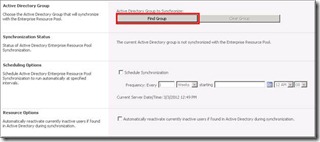
1. Navigate to Server Settings in PWA and click on Active Directory Resource Pool Synchronization under Operational Policies. Select Find Group.
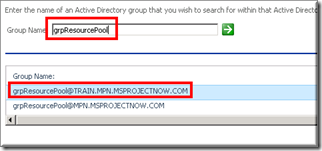
2. Enter the name of the group (the one we used is grpResourcePool ) and then click the green arrow to search groups. From the list that appears under Group Name, highlight the appropriate group and then click OK.
3. Set the scheduling options according to your preferences and click Save or Save and Synchronize Now.
The final step is to synch your security groups. After the Resource Pool Sync, all users are placed in the Team Members group. To get them in the appropriate security group in Project Server, follow the steps below for each security group you want to sync:
1. Navigate to Server Settings and then click Manage Groups under Security.
2. In this example, we will sync the Project Managers group. Click Project Managers and then click Find Group in the Group Information section.
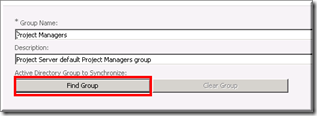
3. Enter the name of your group ‘grpProjectManagers’ and then click the green arrow.
4. Select the appropriate group from the list and click OK.
5. Click Save to get back to the Manage Groups page.
6. Once you’ve mapped all your groups, you need to set you options by clicking Active Directory Sync Options on the Manager Groups page.
7. Enter your settings and then either click Save or Save and Synch now.
And that’s it. Now you have configured Active Directory Synchronization for Project Server. Watch for another post on understanding the various scenarios when synching.
Happy Synching! 

