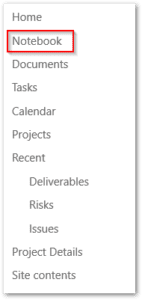
Activating the OneNote Notebook
Looking for a way to quickly take notes without opening up a pad of paper and take handwritten notes? Well, you could consider using your laptop. OneNote is a digital notebook that is part of Microsoft Office 365.
OneNote is a way to organize all your notes, whether you are in college or in the workplace. Quite often we will use a OneNote Notebook for taking project status meeting notes. The Notebook is already part of the Project Site in Microsoft Project Online. It is therefore ready to use. And since there is one Notebook per Project Site, there is no worry about notes getting mixed between projects. And even better, the content in the Notebooks is crawled by the search engine, which makes finding that particular piece of information much easier.
What Devices Does OneNote Work on?
That's easy, OneNote works on just about everything! Microsoft offers versions for Android, macOS, iOS, and Windows (of course!). Regardless of what device you use, and where you are located, you will be able to create and edit your Notebooks.
And here's another great feature! OneNote uses OneDrive to sync your notebooks across all your devices. Therefore, if you update your notes on your surface, the notebook on your laptop or desktop will have the exact same content! This comes is very handy when taking down action items for a project you may be working on on your desktop, that you may want to review with the project team in a conference room with your laptop.
Can Notes be Shared?
Well of course! You can even share with others with you are using a Microsoft Account or you are using a free account to access OneNote.
What can I do with OneNote
You can type anywhere in a Notebook, record audio, you can share notes, you can password-protect individual sections within a Notebook, and much more!
What Notes to take during a Project Status Meeting? Lets think about what a Project Status Report should include.
A good project status report will be straightforward and honest. They will create accountability and ownership within your entire project team. Reports will clearly communicate whether the project is on track, any necessary corrective action, as well as risks and issues.
With that said, when holding our weekly team meetings it will be important to gain a solid understanding of a minimum the following high-level items
- Work completed this period?
- Work scheduled for next period?
- How the project is tracking with regard to cost and schedule?
- Are there any new risks or issues?
- What action items resulted from the meeting. Who is responsible and the due dates.
Using your OneNote Project Notebook will be a great addition to the project execution process you use in order to ensure projects are tracking properly and the entire team is communicating well
How do I activate OneNote in Microsoft Project Online?
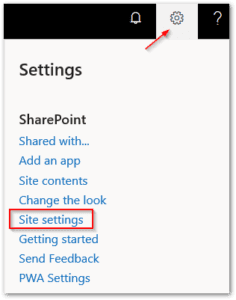
1. Click on the Gear icon then select Site settings.
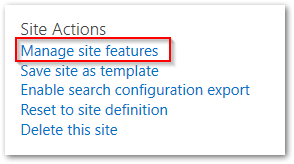
2. Under Site Actions, click on Manage site features.
3. Find the site feature called “Site Notebook”. The site feature will appear to be Activated, but when clicking on the Notebook link in the Quick Launch menu will generate an error.

4. Click on Deactivate.

5. You will be prompted to confirm deactivating the Site Notebook feature. Click “Deactivate this feature”. The page will refresh and load the Site Features page.

6. Find the site feature called “Site Notebook” again and click Activate.

7. The page will refresh. Scroll down to the Site Notebook feature and confirm it’s activated once again.
8. In the Project Site Quick Launch menu, click on Notebook to confirm it loads properly.