











Folks, we recently were asked some questions around Project Server 2010 and subprojects – while there are many thoughts on the use of subprojects, let me address the questions and provide my recommendations as well. Note to determine whether you should break up a large project into a master project and subprojects – check out the helpful guidelines provided by Microsoft at the end of the posting(Thanks Microsoft). Many users can use training to gain the real efficiencies of Microsoft Project or Project Server – choose your training partner wisely. Also check out the follow-up blog on Master Project Templates
Let us know your thoughts on the subject and the Questions/Responses provided.
Enjoy,
Jacques
Question #1: What’s the recommended process for creating a sub-project in PWA-Project Center?
Response: One of best way to create subprojects from Project Center is to multi-select the projects and then open them using Project Professional to linking the tasks.
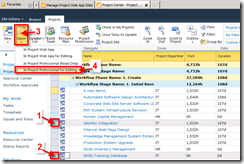
Scenario #1: If the subprojects are already created (and published) – you need to navigate to a Project Center view with the subprojects that you want to link or create in a master project. Then multi-select both project in the Project Center view (Steps 1 and 2 in the screen shot below). Yes, you can multi-select in Project Center (via PWA) – just make sure you click on the light-blue cell next the project indicator column for the projects (see screen shot below). Then click Open –> In Project Professional for Editing (Steps 3 and 4 in the screen shot below).
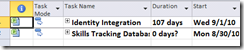
This is how they look in Project Professional as subprojects.
Scenario #2: If the master project is already created (and published) in PWA and you want to add in subprojects. Open the Master Project via PWA (Open In Project Professional for editing and then follow-up the Linking tasks between two sub-projects below (however save the master project as well).
Question #2: Linking tasks between two sub-projects, but not in the master. Further information for the question: Once #1 is in place, we would like the two (or more) subprojects’ schedules to reference tasks from one another project, without having to create this reference within the master schedule.
The example we will use is: The QA Group begins the Testing phase (in Project A) after the Development Group finishes the Development phase (in Project B).
Response: One of best way to create links between two (2) projects is by creating a Shell Project in Project Professional 2010 and then linking the tasks.
Following the example above:
- Open Project Professional 2010 and use the Subproject button on the Project tab in the Insert category (see screenshot below).
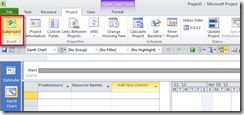
- Insert both projects (Project A and Project B).
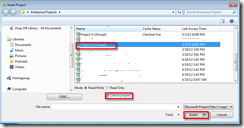
Note: Use the Link to Project check box if you want to update the subproject with changes from the master project, or if you want to show changes from the subproject in the master project, clear the Link to Project check box. - Expand both Project A and Project B. To link the ‘Development Complete’ task (task #12 in Project B) with the ‘Execute Test Plan’ task (task # 4 in Project A) – you would 1st click on the ‘Development Complete’ in Project B and while holding down the CTRL key click on the ‘Execute Test Plan’ task in Project A - Then click the Link button. (See screen shot below).
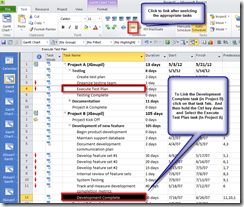
- Then save only Project A and Project B and not the shell project (Project 1). The easiest way to do this is hit the close button and you will be prompted to save each project. Remember only save Project A and Project B (as in this case we are not creating a master project rather just linkin

