Call Us Today! 1.800.895.3254
[email protected]
Consulting & Advisory
Consulting / Advisory helps business and IT leaders make better decisions and turn strategy into execution-ready initiatives. Most engagements start with a Discovery Initiative to confirm outcomes, and build a roadmap.

Learn About Consulting
Data & AI
Data & AI delivers modern data platforms, analytics, and practical AI solutions—from assistants to agents—built on enterprise cloud tools. Integent helps you govern, deploy, and drive adoption so solutions stick and scale across your organization.
Learn About Data & AI
Support
Support keeps your solution stable, secure, and aligned with day-to-day operations. We combine functional and technical expertise with proactive monitoring, preventive maintenance, and 24/7 coverage for critical incidents.

Learn About Support
Microsoft Planner Premium
Leverage proven knowledge and experience to design and deploy Microsoft Planner Premium so your organization can manage projects, work, and resources more effectively across teams.
Learn More About Planner Premium
OnePlan
Integent can help you ensure continuity beyond Project Online by deploying OnePlan in the Microsoft Cloud—connecting portfolio governance, resources, and delivery execution for results.
Learn More About OnePlan
Microsoft Dynamics 365
Ensure business continuity with a custom cloud solution that connects your sales, service, finance, and operations teams to deliver measurable, predictable results.

Learn More About Dynamics 365
Microsoft Power Platform
Consisting of Power BI, Power Apps, Power Automate and Copilot Studio, the Microsoft Power Platform helps streamline and improve business functions.

Learn More About Power Platform
About Integent
Integent was founded in 2009 on the principles of building long-lasting relationships with customers, exceeding expectations, and providing outstanding customer service. 

We’re dedicated to providing a customized solution backed by our knowledgeable team of Microsoft experts.
Discover What Makes Us Different
Insights
Explore practical insights on project portfolio management, Data & AI, Microsoft cloud solutions, and business transformation. Our experts share guidance to help organizations improve governance, reporting, automation, and decision-making.
Discover More
Videos
Watch practical training videos, product walkthroughs, and expert demos covering modern project management, analytics, automation, and Microsoft business applications.

Browse Our Training Video Library
News
Stay informed on Integent’s latest company updates and other important industry information. Our passion is customer success.
Read The Latest News

May 23, 2012

Ask the Experts: Why Isn't My Custom Risk Field Showing Up On Reports?

Question:

Hi, I recently attended the MPUG webinars on Reporting (first two). I though you guys did an excellent job with this series (very impressed). Unfortunately I have been forced to listen to the recorded versions since my audio does not work for live meeting. Due to this, I was unable to submit my question. At a high level I am trying to pull custom fields from Content Type “Project Site Risk” into the Risks Report under the Business Intelligence Center --> Templates. We have been successful at pulling custom MS Project Fields into these reports however our DBA's cannot seem to locate the custom fields created in SharePoint. For example, we modified the Content Type to include Risk Cause (text), Risk event (text), Impact (text), Risk Probability (numeric), Effort Impact (numeric), ect. I am wondering if you have any advice on where to locate the custom fields added to the "Project Site Risk" Content Type. Thank you very much!


Answer

Thank you for the comments.  To answer your question, new meta-data added to the Risks or Issues list does not show up in the Project Server Reporting Database (unfortunately).  In order to get this data you will need to either harvest it from the content database in which your Project Site is located, or use SSRS with a SharePoint list as your data source.  The former is the more popular method, although both are somewhat complex. 

Method 1

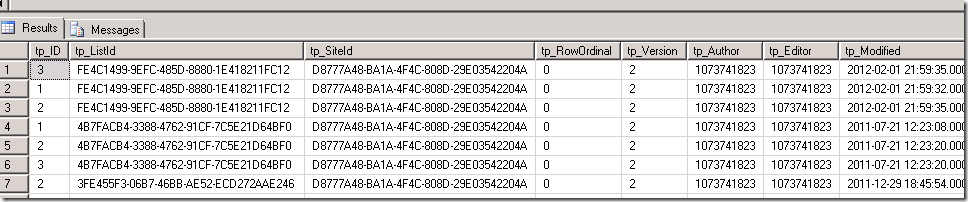
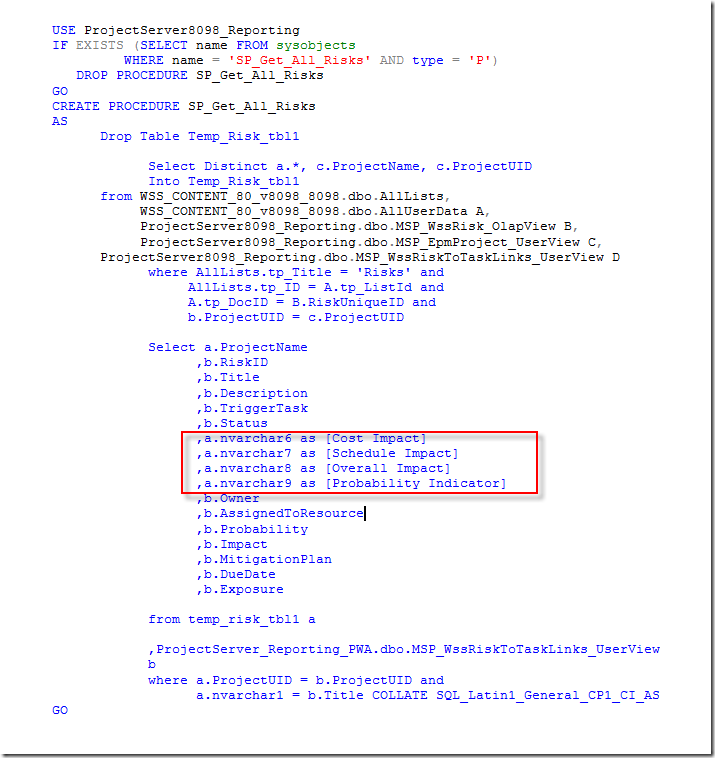
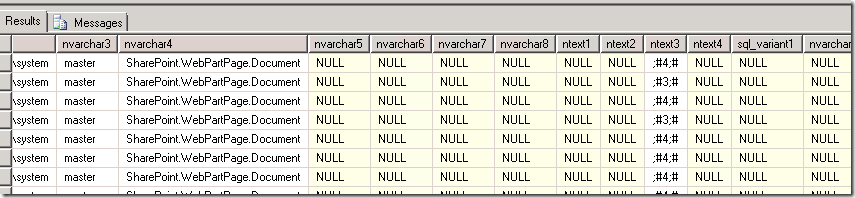
Determine which content database contains your Project Sites, then select * from AllUserData (screenshot1).   AllUserData is a table in the content database that contains all meta-data fields.  I’ll tell you now this is sometimes like finding a needle in a haystack, because the table and rows are not logically laid out.  Below is a select of some of the rows/columns.  Note the headings are nText1, nText2, etc.  In my experience I’d basically have to focus on a value in my Project Site.  Maybe it’s a text-based field of “Stakeholders met”.  I would then look at the results of the query and more specifically in the nText<x> columns until I locate the value.  That would give me the tp_ListID, tp_SiteID and other key fields that help me identify how I will need to build my select statement to pull in not only the default fields in the Reporting Database, but also the custom meta-data fields I created in my Risks or Issues list (Screenshot 2).  Finally, screenshot 3 shows an example of what the SQL code might look like to pull in custom meta-data.  The items in the red box were custom fields created in a Risks list.  In the example below a stored procedure was created and referenced in the Excel Template data source.  You could have just as easily used embedded SQL. 

Regarding method 2, watch out for our Webinars because we will be scheduling a session on SSRS that uses SharePoint as it’s data source. 


Screenshot 1
image


Screenshot 2

image


Screenshot 3

image

-Dan

© Copyright 2026 | Integent.com | All Rights Reserved
linkedin facebook pinterest youtube rss twitter instagram facebook-blank rss-blank linkedin-blank pinterest youtube twitter instagram