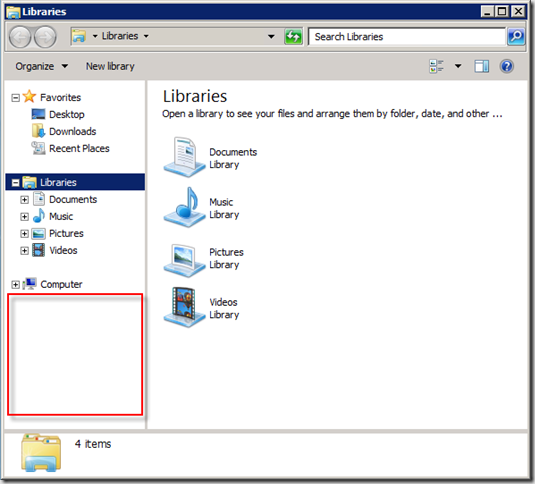
I recently setup Group Policy on a Windows Server 2008 R2 server hosting RemoteApps. This really was quite a process of trial and error. When it came to the Network Places icon removal, this was the toughest. There is no specific GP item for this. The way I ended up doing this was by creating my own GP item as outlined below.
- First, open up Notepad on the server and copy the text between the === signs, then paste it into Notepad.. Then save the file as a *.adm file. The name is unimportant and will not be used as part of your new GP item.
============================================================
CLASS User
CATEGORY !!Custom
CATEGORY !!ExplorerExtras
POLICY !!HideNetworkInExplorer
KEYNAME "SOFTWAREMicrosoftWindowsCurrentVersionPoliciesNonEnum"
EXPLAIN !!HideNetworkInExplorer_Help
VALUENAME "{F02C1A0D-BE21-4350-88B0-7367FC96EF3C}"
VALUEON NUMERIC 1
VALUEOFF NUMERIC 0
END POLICY
END CATEGORY
END CATEGORY
[strings]
Custom="Custom Policies"
ExplorerExtras="Windows Explorer Extra's"
HideNetworkInExplorer="Hide the Network Icon in Explorer 2008/Vista/Windows 7"
HideNetworkInExplorer_Help="Enable this to hide the netowrk icon, disable or unconfigure to show the network icon."
============================================================
Now perform the following:
- On the Active Directory server, open up group policy management
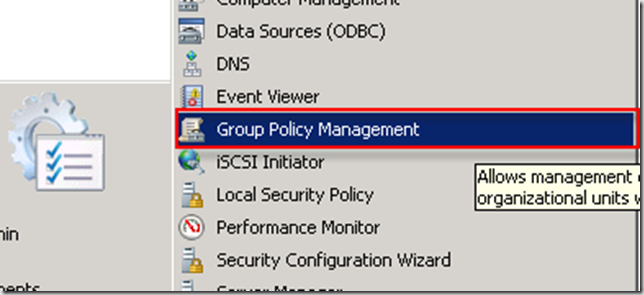
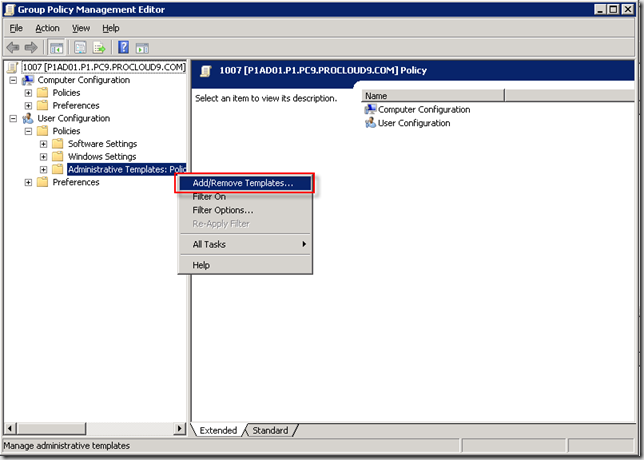
- Now edit the appropriate GP, then expand user Configuration > Policies
- Right click Administrative templates and click Add/remove templates.
- In the Add/Remove Templates dialog box, Select Add button
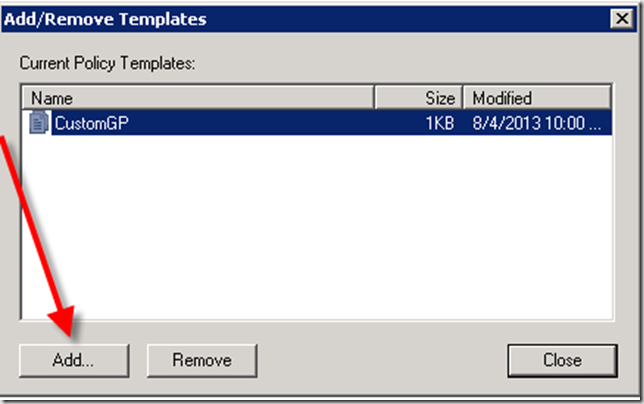
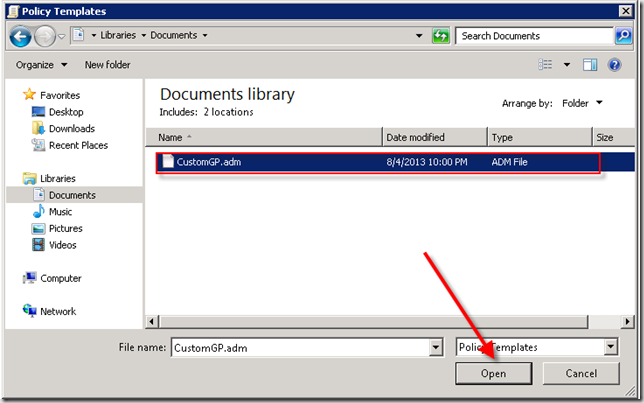
- Now browse to the .adm file you created earlier, select it, then click the Open button
- Once added, the resulting Group Policy Management Editor dialog box should show your newly added GP item.
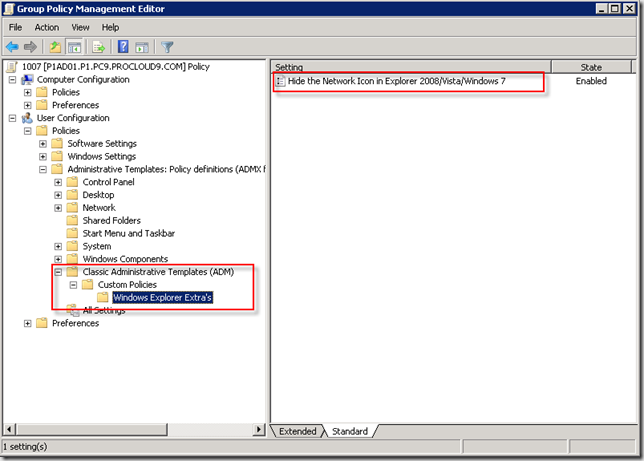
As you can see the Network Places icon is no longer in Windows Explorer. I left the Computer icon there so users could browse to their local desktop to copy files to the RemoteApp server.