











When you first attempt to create a PerformancePoint report you may receive an error stating an issue with an unattended service account. The steps below will resolve this error and allow you to develop your reports.
| Step | Action | Details |
| 1 | Launch SharePoint Central Administration by Selecting Start > SharePoint 2010 Central Administration | 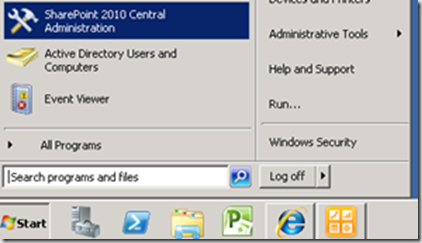 |
| 2 | Under Application Management, select Manage Service Applications | 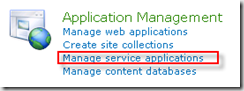 |
| 3 | Select PerformancePoint Service Application | 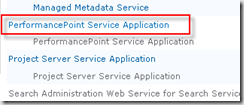 |
| 4 | Select PerformancePoint Service Application Settings. | 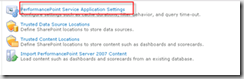 |
| 5 | Specify a Windows authenticated account in the format domainuserid for the Unattended Service Account User Name andand a password, then select OK. | 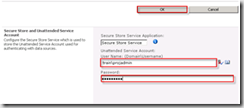 |
| 6 | Once the unattended service account has been configured, you must grant that account access to your data sources: |
|

